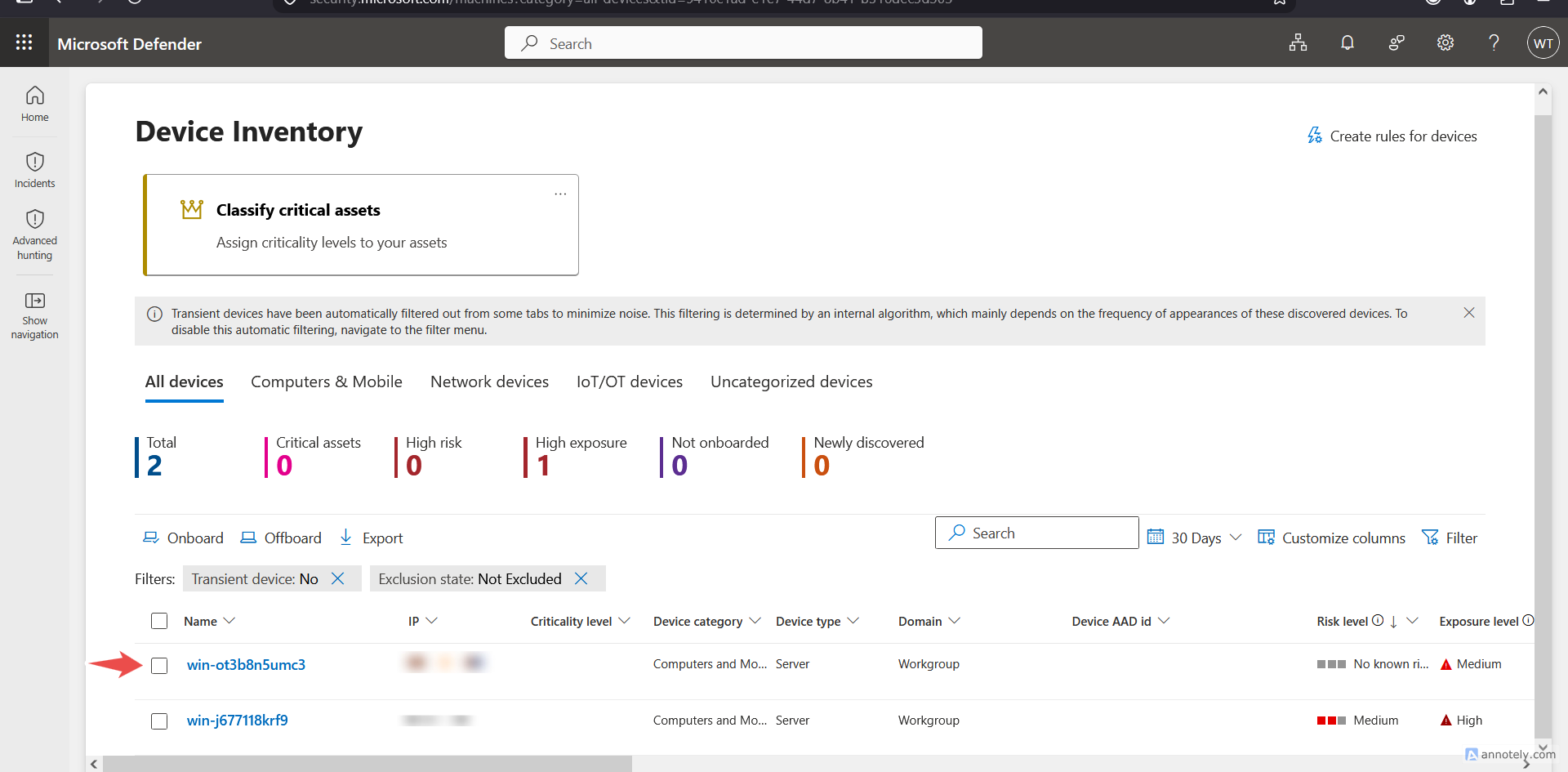
This guide walks through onboarding a Windows Server machine to Microsoft Defender for Endpoint (MDE) using the Local Script deployment method, and verifying onboarding with the built-in detection test.
Prerequisites
- Local administrator access on the target server.
- The server must be one of: Windows Server 2019, Windows Server 2022, or Windows Server 2025.
- Outbound internet access to Microsoft Defender for Endpoint cloud service endpoints.
Step 1 — Open the Onboarding Page
Sign in to the Microsoft Defender portal and navigate to the Endpoints onboarding page:
- Onboarding page: https://security.microsoft.com/securitysettings/endpoints/onboarding
Step 2 — Select the Operating System
Under “Select an operating system to start deployment,” choose “Windows Server 2019, 2022, and 2025.”
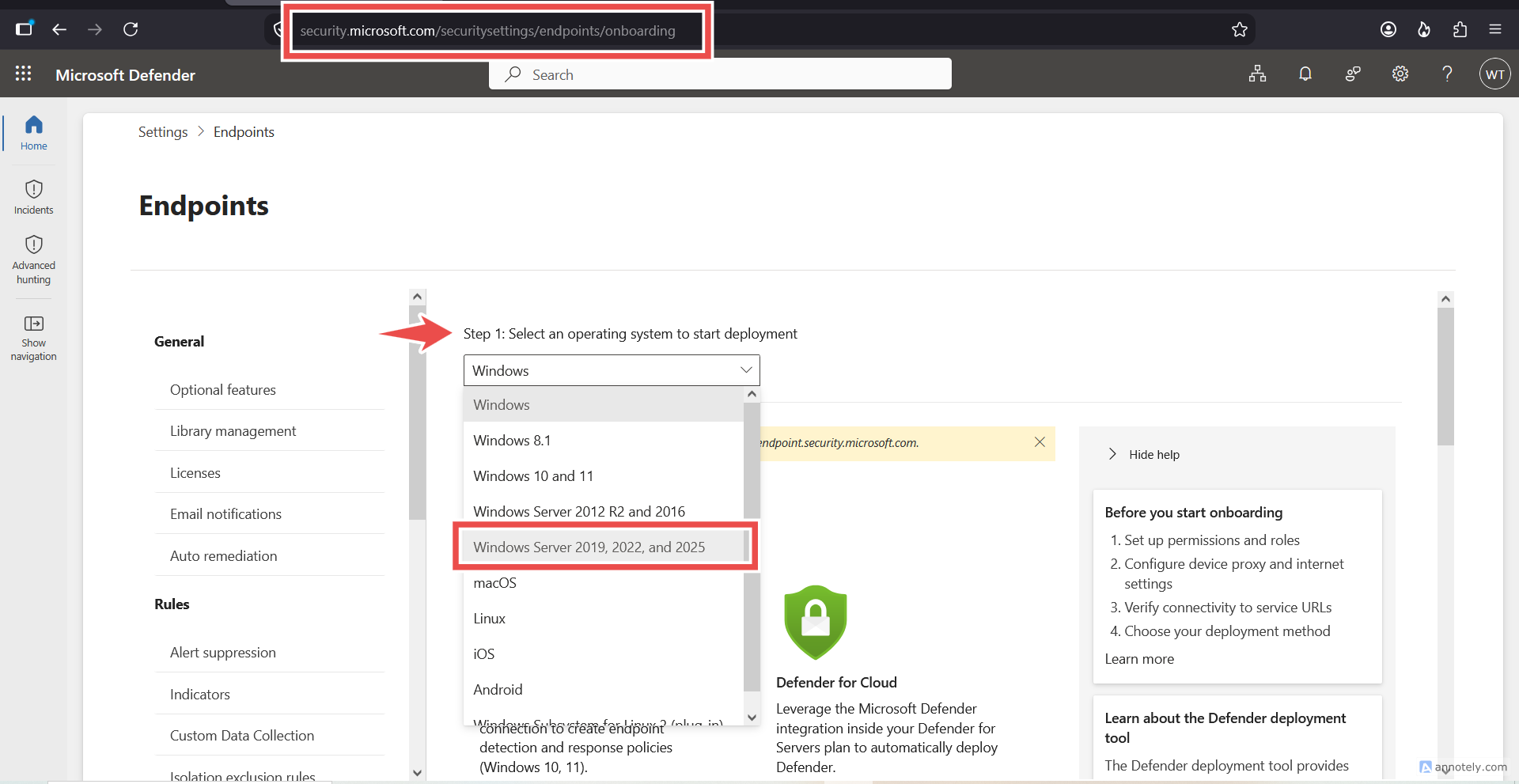
Step 3 — Select Deployment Method and Download the Package
- Under “Onboard a device,” set Deployment method to Local Script (for up to 10 devices).
Click Download onboarding package and save the file to the target server.
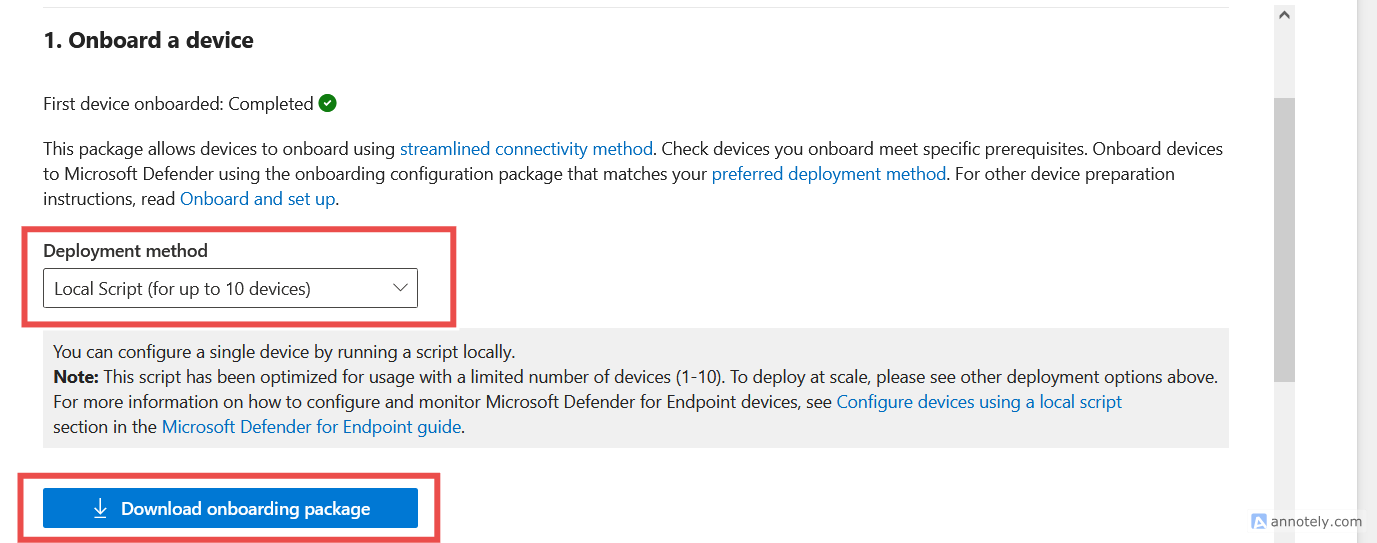
Note: This script is optimized for small-scale use (1–10 devices). For larger deployments, use Group Policy, Intune, or another configuration management tool instead.
Step 4 — Run the Onboarding Package
Run the downloaded onboarding package on the target server with administrator privileges. This registers the device with Microsoft Defender for Endpoint.
Step 5 — Run a Detection Test
To confirm the device is properly onboarded and reporting to the service, run the detection test on the newly onboarded server:
- Open a Command Prompt window as Administrator.
- Copy and run the command below. The Command Prompt window will close automatically once complete.

What this does: This is Microsoft's official MDE detection test command. It simulates a suspicious file download/execution so the newly onboarded device generates a test alert, confirming it is reporting correctly to Microsoft Defender for Endpoint. It does not download or run any real malicious file.
Step 6 — Verify the Device in the Defender Portal
Onboarding and detection results are not instant. Allow a couple of hours, then confirm the server appears in the device inventory:
- Device inventory: https://security.microsoft.com/machines