
Step 1 – Open Microsoft Defender Vulnerability Management
Sign in to the Microsoft Defender portal and navigate to:
Microsoft Defender Portal https://security.microsoft.com
From the left navigation pane, go to:
Home→ Vulnerability Management → Vulnerabilities
This section provides actionable security recommendations for onboarded devices.
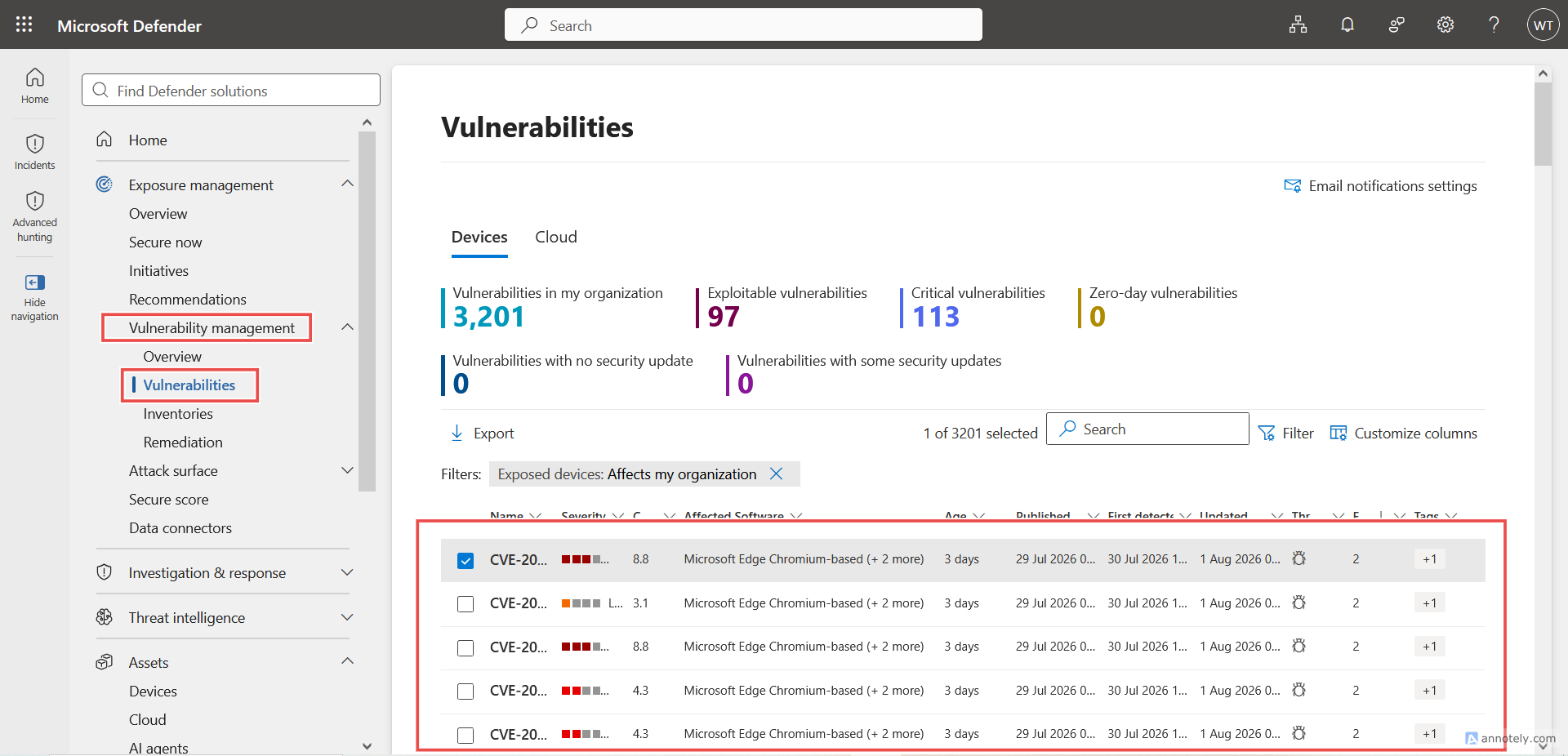
Step 2 – Review Security Recommendations
The Recommendations page displays security improvements prioritized according to risk and organizational exposure.
Examples of recommendations include:
- Update unsupported software
- Apply missing Windows security updates
- Enable Microsoft Defender Antivirus protection features
- Disable insecure protocols
- Upgrade vulnerable applications
- Enable attack surface reduction rules
From the left navigation pane, go to:
Home → Assets → Devices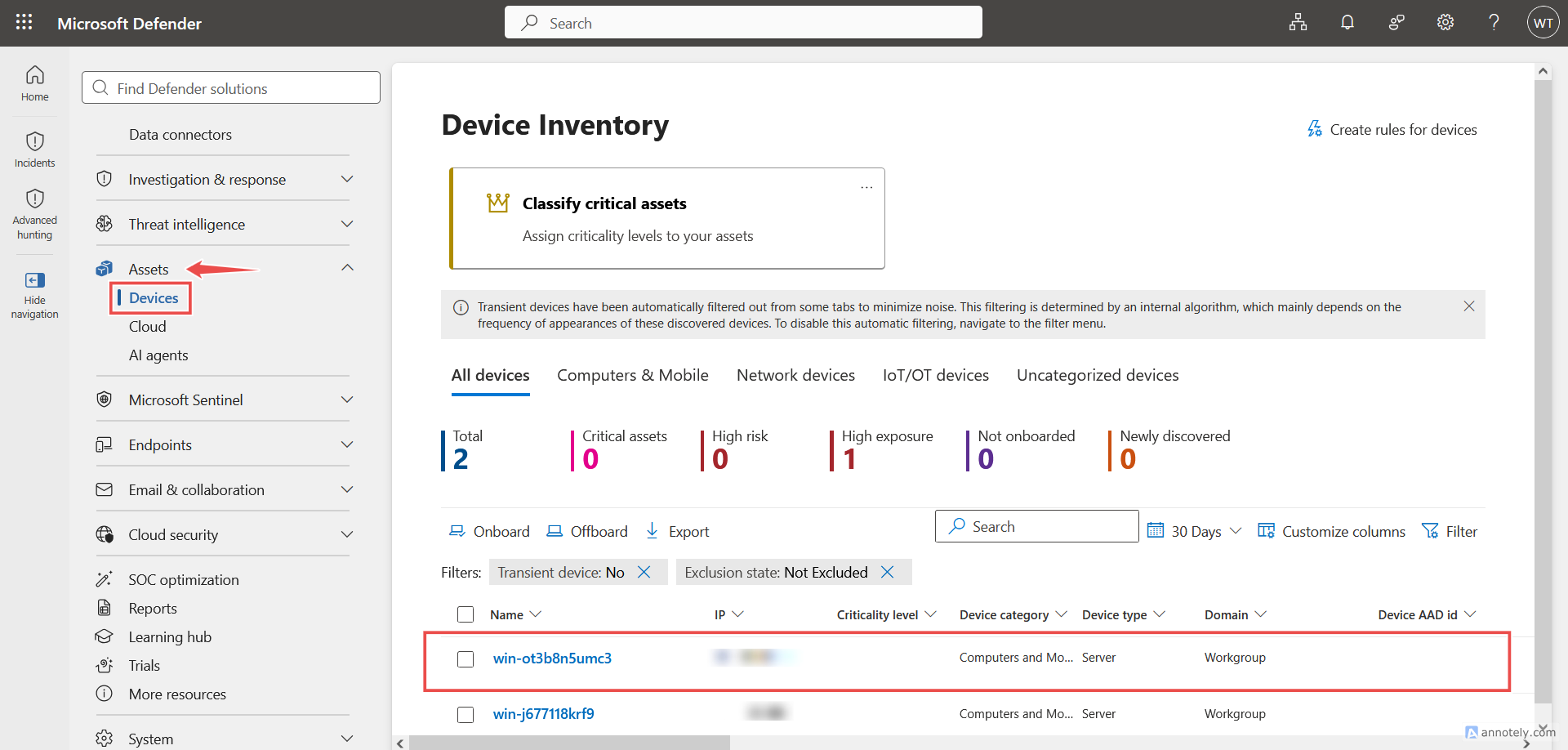
Click on your device → Security Recommendation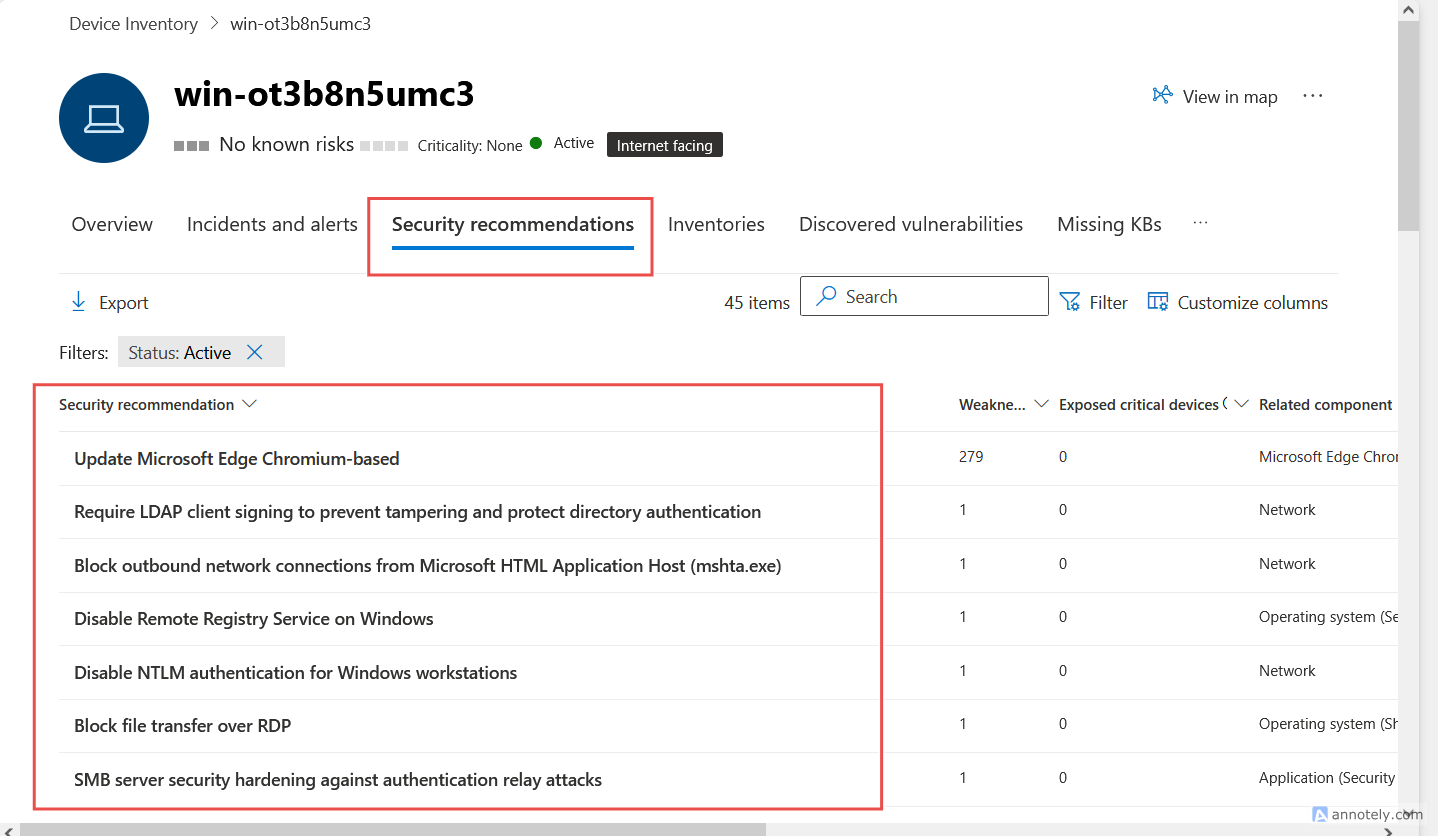
Step 3 – Investigate a Recommendation
Select a recommendation to view detailed information.
You will see:
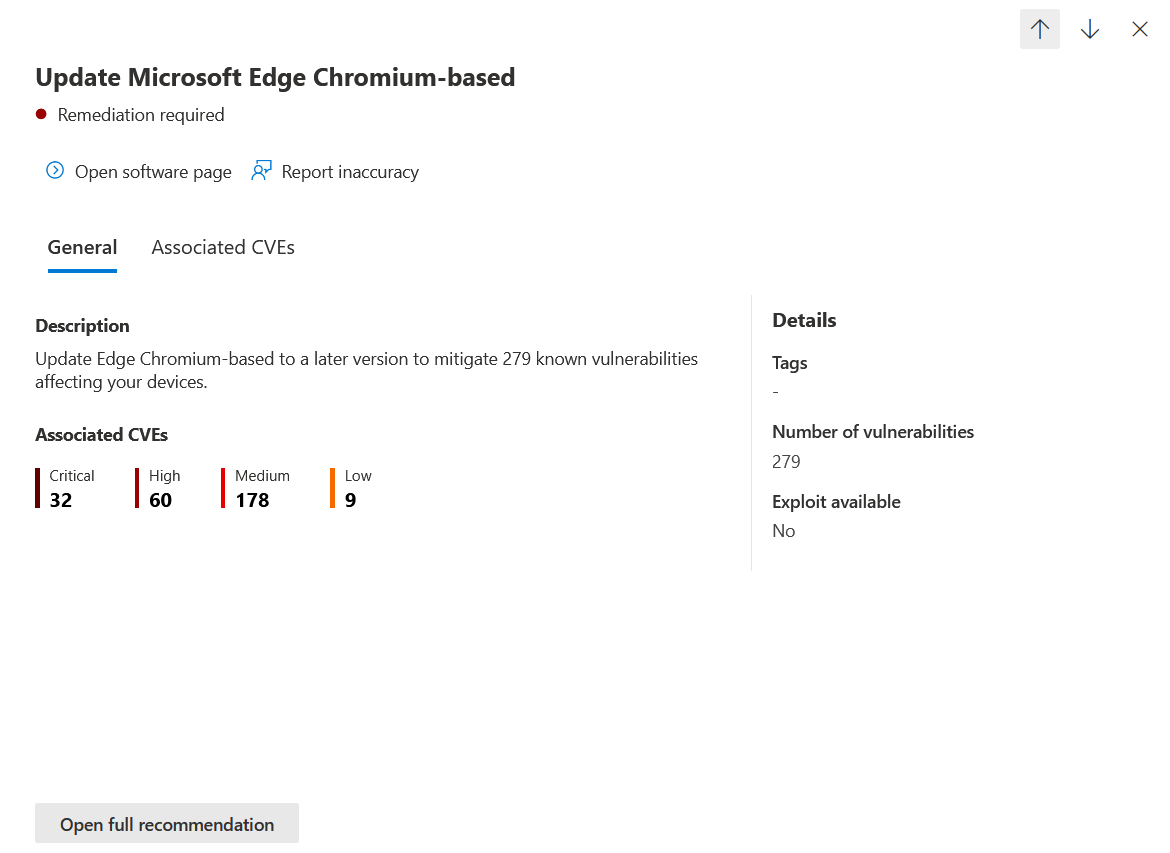
Overview
Provides:
- Description of the security issue
- Business impact
- Risk details
- Exposure reduction benefits
Affected Devices
View all devices impacted by the recommendation.
Conclusion
Onboarding devices to Microsoft Defender for Endpoint is only the first step. To maximize protection, administrators should regularly review security recommendations, investigate vulnerabilities, and remediate identified risks. By continuously reducing exposure and addressing high-priority vulnerabilities, organizations can strengthen their security posture and minimize the risk of compromise across their Windows Server environment.